

LearnDash Course Access Lost After Subscription Renewal: How to Fix It
A student pays for another month, but their course stays locked. They cannot continue learning, and you receive a support request.
If you use LearnDash with WooCommerce Subscriptions, a known integration bug could be the cause. Here is what to check and how to restore access.
What causes the problem?
LearnDash confirmed a bug that could remove course access when a subscription renewed. Some lessons released on a schedule could also become locked again.
The WooCommerce Integration 2.0.3 update, released on September 2, 2026, fixed these issues. That version requires LearnDash 5.1.0 or later. Read the official release notes.
1. Check the payment and update
Open the student's renewal order and subscription. Match the payment record with your payment provider. Confirm that the payment succeeded and the subscription is active.
Then back up your site. Test a compatible integration update containing the 2.0.3 fixes on a staging site—a private copy of your website. Check its requirements before updating the live site.
The update fixes the known bug. Students who already lost access may still need the recovery step below.
2. Check the access settings
Under LearnDash LMS → WooCommerce → Enrollment Status, check that active subscriptions grant access. Review other statuses against your payment policy.
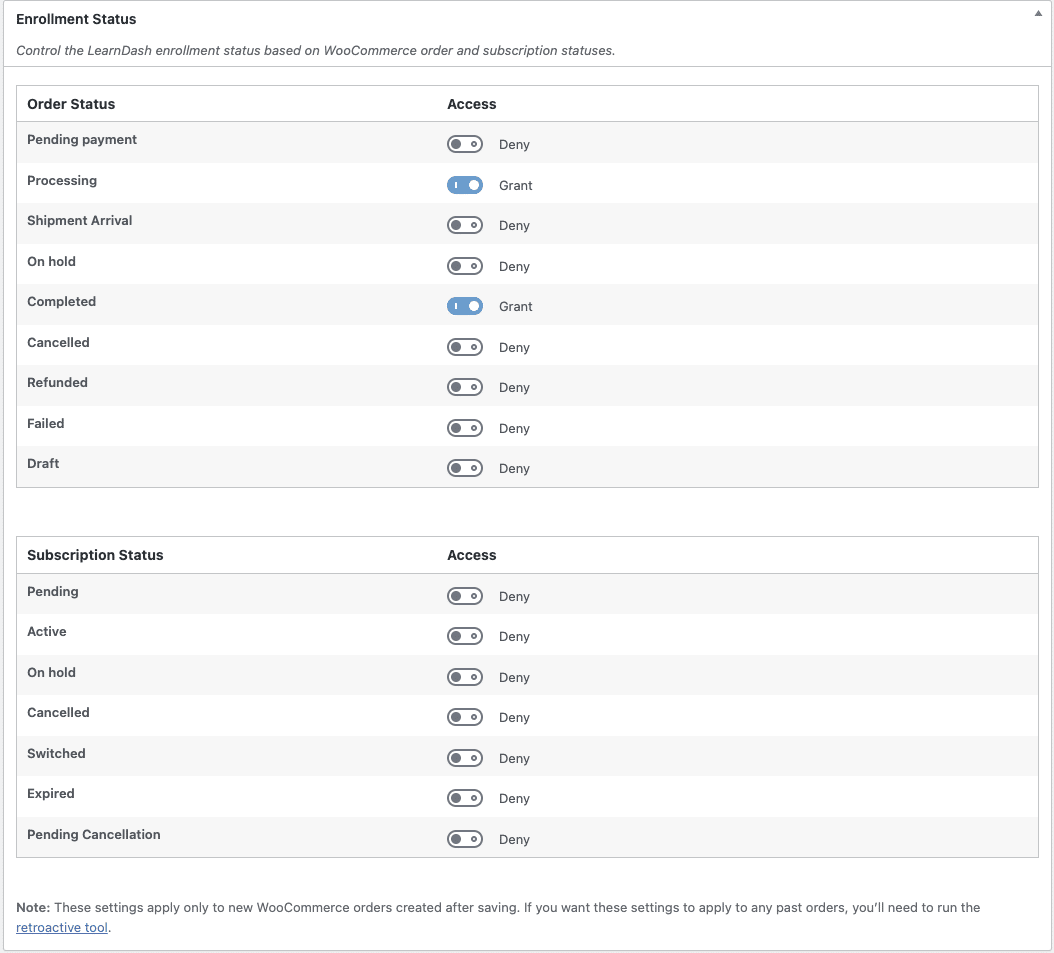
3. Check the linked course
Edit the purchased product and confirm it links to the intended LearnDash course or group.

4. Restore missing access
After checking the settings, use the recovery tool:
- Open WooCommerce → Status → Tools.
- Find Give LearnDash Students Retroactive Access.
- Select Run.
The tool updates enrollments using your access settings. It can affect other students, so test it on staging first. See the official setup and recovery guide.
Do not confuse renewal with expiration
The expiration setting controls whether access ends when a subscription expires. Checking Disable stops that removal; it does not fix the renewal bug.

Screenshots: LearnDash documentation. They illustrate settings, not a live example of the bug.
5. Check that the fix works
On staging, test a successful renewal, a failed payment followed by recovery, and a cancellation. Confirm that the right lessons open and saved progress remains intact.
If access still fails, collect the plugin versions, affected order and subscription IDs, and relevant logs for support. Do not ask a student to pay again for a confirmed payment.
Keep paying students learning
Confirm the payment, apply the compatible fix, review the settings, and restore missing access. This helps protect the learning experience and reduce avoidable support work.
For more ways to improve your membership business, read how to bring a dead membership plan back to life.
Need help restoring course access?
Rowerr can review your setup and help you find why paying students are locked out.
Get LearnDash Help